
Loading Drills
Nearly everything you do in ICATS starts by loading a drill. This page shows the fast, reliable way to find drills and move through them during a session.
Open the File Manager
- Open File Manager
Press l (lowercase L) to open the File Manager.
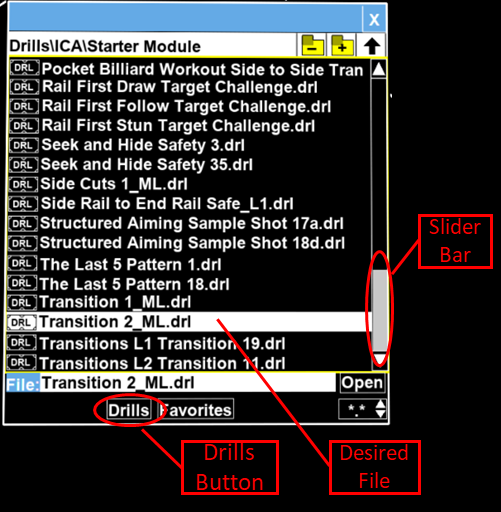
- Navigate folders
Use the mouse or trackpad to open folders. ICA drills are typically found under:
Drills → ICA
Load a drill
- Select a drill file
Click once to preview a drill file.
- Load it
Double-click the file, or press Enter. The drill will immediately appear on the table.
- Verify the overlay
Confirm the layout orientation and scale look correct before placing balls.
Move through drills efficiently
Once a drill is loaded, you don’t need to reopen the File Manager every time.
| Key | Action |
|---|---|
| ↑ / ↓ | Next / previous drill in the current folder |
| Esc | Close File Manager or dialogs |
| l | Reopen File Manager |
This lets you:
- Repeat similar drills back-to-back
- Progress through a module in order
- Avoid breaking focus during practice
Common problems (and quick fixes)
Drill didn’t load?
- Press Esc to close dialogs, then try again
- Make sure you actually selected a .drl file, not a folder
- If arrow keys don’t change drills, the File Manager may still be open — close it first
Orientation looks wrong
Use h or v to flip the layout so it matches your shooting position.
Good habits while learning
- Keep a small set of drills you repeat often
- Don’t jump between folders every few minutes
- Use arrow keys to stay in rhythm during a session
Consistency beats variety early on.