
File Manager
The File Manager is the central hub for ICATS content. You use it to browse folders, load drills, and move efficiently through a practice session.
Once you understand the File Manager, everything else in ICATS becomes easier.
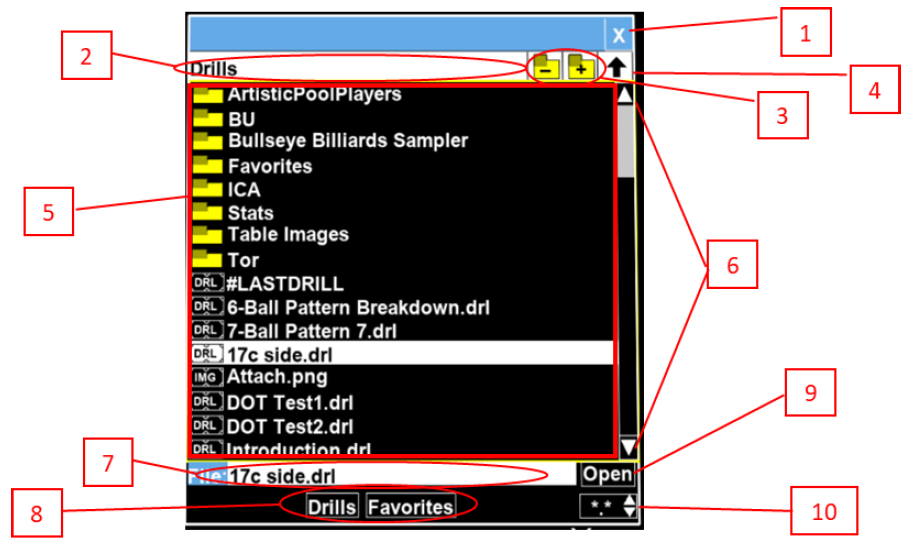
The ICATS File Manager with numbered interface elements.
| Element | Purpose |
|---|---|
| 1 | Close – Left-click the “X” to close the File Manager. |
| 2 | Directory Bar – Shows the name of the current folder. The File Window (Element 5) lists all folders and files inside this folder. |
| 3 | Add / Delete Folder – Left-click the plus icon to create a new folder. Left-click the minus icon to delete the selected folder. A folder must be empty before it can be deleted. |
| 4 | Up One Folder – Left-click the up-arrow to move to the parent folder. The Drills folder is the top-level folder. |
| 5 | File Window – Displays all folders and files in the current folder. Folders appear first, followed by files. File icons indicate the file type: • DRL – ICA drill file (can be loaded and displayed) • IMG – Image file (JPG or PNG) that can be loaded as a drill or used as a target • ??? – File type not recognized by ICATS and cannot be loaded |
| 6 | Scroll Controls – Left-click the up or down arrows to scroll one line at a time. Left-click or click-and-drag the slider bar to scroll faster. |
| 7 | File Entry Box – Shows the selected file name. When saving a drill, left-click this box and type the new file name. |
| 8 | Folder Shortcut Buttons – Provide one-click access to common folders. Left-click Drills or Favorites to jump directly to that folder. A USB button (not shown) appears when a USB drive is plugged into ICATS. |
| 9 | Open / Save Button – After selecting a file or folder, left-click Open to open it. When the Save menu is active, this button changes to Save. |
| 10 | File Type Filter – Controls which files are shown in the File Window: • *.* – show all files • DRL – show drill files only • IMG – show JPG and PNG image files |
Open the File Manager
- Open File Manager
Press l (lowercase L) to open the File Manager at any time.
The File Manager opens as a floating window on top of the table display.
How content is organized
ICATS content is organized into folders. Each folder contains related drills or modules.
Common top-level folders include:
- Drills — Practice layouts and training modules
- Media — Images or reference material (if installed)
- User — Drills you’ve created or modified
Within Drills, ICA-created content is typically found under:
Drills → ICA → Starter Module
Load a drill from the File Manager
- Select a drill
Click once to highlight a drill file.
- Load it
Double-click the file, or press Enter.
The drill will immediately appear on the table.
Once a drill is loaded, you can close the File Manager and focus on shooting.
Move through drills without reopening File Manager
After loading a drill from a folder, ICATS remembers that folder.
| Key | Action |
|---|---|
| ↑ / ↓ | Load next / previous drill in the same folder |
| Esc | Close File Manager or dialogs |
| l | Reopen File Manager |
This lets you work through a module in order without breaking your rhythm.
Common mistakes (and fixes)
Arrow keys only work when the File Manager is closed.
Press Esc to close it, then try again.
Make sure you’re looking in the correct folder. User-created drills should be stored under User, not Drills → ICA.
Good habits
- Keep a small set of drills you revisit often
- Don’t dig through folders mid-session unless you’re intentionally changing focus
- Use arrow keys to stay in flow once a drill is loaded